Detail of VGear Components
Here will introduce the setting of components of the vGear prefab and its child.
V Gear
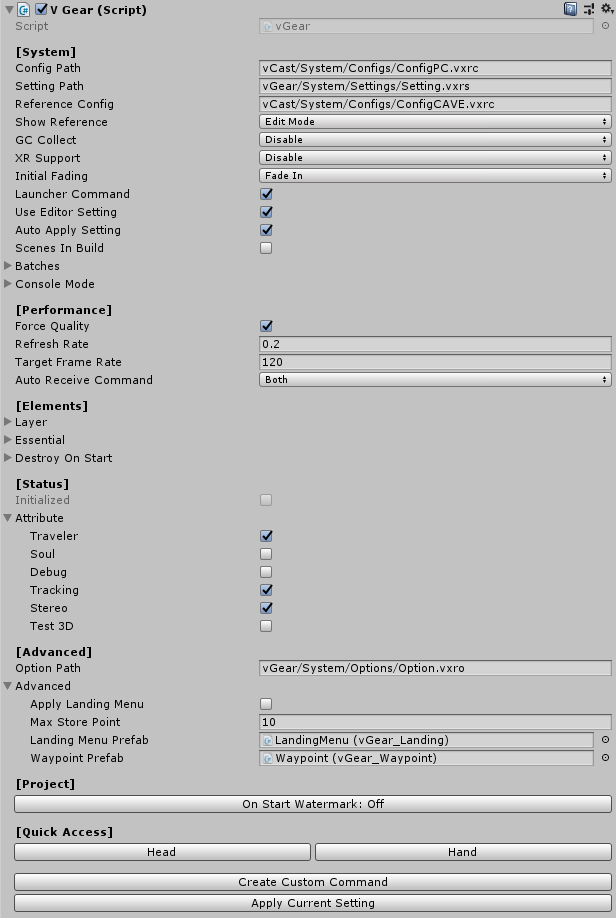
Click the gameobject vGear in the Hierarchy window, component V Gear (Script) is shown at the inspector window, which manage the setting of the vGear system.
| Config Path | The path of reading the system config in Unity Engine Editor. |
| Setting Path | The path of reading the system settings in Unity Engine Editor. |
| Reference Config | The path of config read for screen reference. The screen reference is useful for attaching gameobjects in the screens. |
| Show Reference | Select the mode to show the screen gameobject reference. |
| GCCollect | Manual GC Collect option. |
| XR Support | Enable to support OpenVR, "Standard Mode" for HTC Vive and "Role Mode" for SteamVR Role Mode. |
| InitialFading | Initial fade setting. |
| LauncherCommand | Receive commands from launcher. |
| UseEditorSetting | Override some settings from scene instead of json file when running in editor. |
| AutoApplySetting | Auto save current setting when building project. |
| ScenesInBuild | Enable this to save and load scenes in build setting by scene path, not the common setting. |
| ScenesInBuild | Enable this to save and load scenes in build setting by scene path, not the common setting. |
| Batches | The batch files setting for building the project. |
| ConsoleMode | Console mode setting of XR system. |
| Force Quality | Enable to set the quality settings by setting file. |
| Refresh Rate | The refresh rate for the function that no need to update each frame. |
| Target Frame Rate | Target Frame Per Seconds. Recommended 120 for VotanicXR SDK physics. |
| AutoReceiveCommand | Auto receive command option. |
| Layer | All layers of the XR system. |
| Essential | Essential elements to initialize the XR system. |
| DestroyOnStart | The objects will be destroyed on start. |
| Initialized | Return true if the XR system is initialized. |
| Attribute | All attributes of the XR system. |
| -Traveler | Enable Traveler for user navigation by controller.
Usually disable during scene transition or playing animation. |
| -Soul | Enable Soul for ignoring user free falling and wall collisions.
Usually disable during flying or looking around the scene. |
| -Debug | Enable Debug for custom uses and showing debug message. |
| -Tracking | Enable Tracking for tracing trackers. |
| -Stereo | Enable Stereo for displaying stereo image. |
| -Test3D | Enable Test3D for checking XR camera eyes image. |
| Option Path | The path for reading the optional project setting file. |
| Advanced | Additional elements to initialize the system. |
| -Apply Landing Menu | Apply the landing menu if true. |
| -Max Store Point | Number of teleported points can be stored. |
| -Landing Menu Prefab | Prefab of landing menu. Can be null. |
| -Waypoint Prefab | Prefab of waypoint. Can be null. |
| On Start Watermark | Click to toggle the watermark. |
| Head | Debug Use. Click to select Head GameObject. |
| Hand | Debug Use. Click to select Hand GameObject. |
V Gear Controller
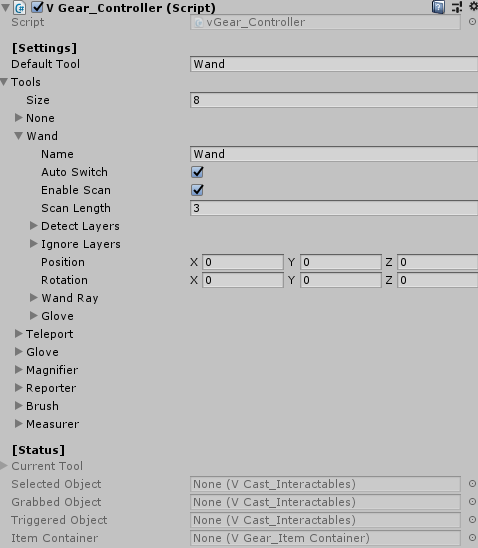
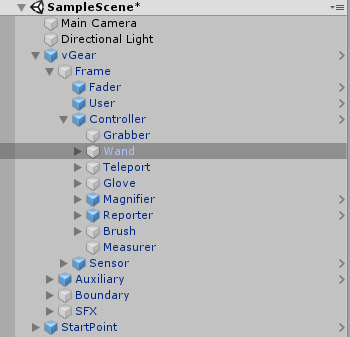
Go to vGear > Frame > Controller, component V Gear_Controller (Script) is shown at the inspector window, which manages the setting of controller. API provided functions to get/set the controller gameobject and settings.
| Default Tool | The name of default tool of controller. Note that the tool name should be the same as the Tools below. |
| Tools | Tools list of controller, the expansion stores the setting to change between tools. This component control the common settings for all tools. There will be different settings for each tool, will be introduced below. |
| -Auto Switch | When current tool is this tool, all the tools which apply Enable Scan will scan objects and auto switch to the first detected tool. |
| -Enable Scan | When current tool applies Auto Switch, scan objects and determine this tool should be switched on or not. |
| -Scan length | Tool detection scan distance. |
| -Detect Layers | The layer related to this tool for scanning. |
| -Ignore Layers | The layer ignored to this tool for scanning.
The meaning of layer ignored is based on the tool. |
| -Position | The relative position on controller. |
| -Rotation | The relative rotation on controller. |
| -Wand Ray | Wand ray setting of this tool.
Can be enabled with the tool. |
| -Glove | Glove setting of this tool.
Can be enabled with the tool. |
| Current Tool | The current tool of controller. |
| Select Object | The interactables currently selecting.
Selecting mean the interactable is selected but not received Trigger command. |
| Grabbed Object | The interactables currently grabbing.
Grabbing mean the interactable is selected and receiving Grab command. |
| Triggered Object | The interactables currently triggering.
Triggering mean the interactable is selected and receiving Trigger command. |
| Item Container | The container of item data for inventory system. |
V Gear Wand
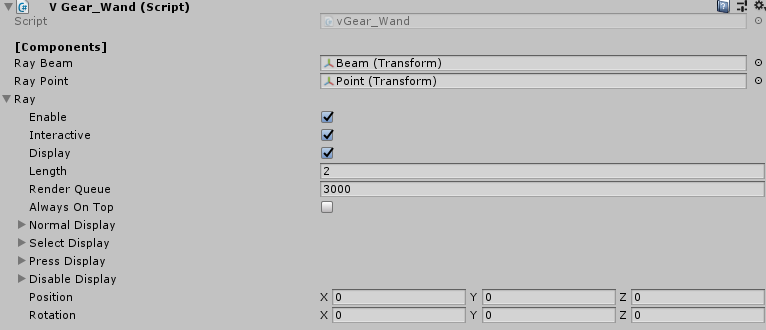
Go to vGear > Frame > Controller > Wand, component V Gear_Wand (Script) is shown at the inspector window, which manages the setting of the wand tool.
Wand is the basic tool to interact the gameobjects with Interactables that will be described in chapter Interactable. API provided functions to get/set the wand gameobject and settings.
| RayBeam | The transform of the Beam gameobject. |
| Ray Point | The transform of the Point gameobject. |
| Ray | Stored the settings of the ray, such as color, length. |
| -Enable | Enable the wand ray. |
| -Interactive | Set wand ray is interactive or not. |
| -Display | Enable to display the wand ray. |
| -Length | The length of the wand ray. |
| -Normal Display -Select Display -Press Display -Disable Display | WandRayDisplay structure. Structure to save different Display detail for different states. The field included a color and an onTopAlpha. |
| -Position | Relative position on controller of wand when using other tools. |
| -Rotation | Relative euler angles on controller of wand when using other tools. |
V Gear User
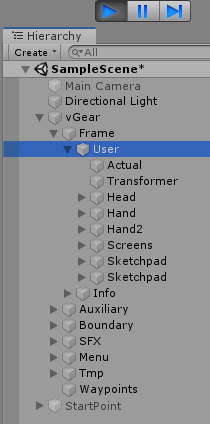
Go to vGear > Frame > User, component V Gear_User (Script) is shown at the inspector window, which manages the setting of the user. API provided functions to get the gameobject and settings.
During play mode, it will instantiate corresponding gameobjects based on config reads, such as head and hands.
Note that the Controller gameobject will become the child gameobject of the Hand.
| Editor Mode | Play Mode |
| 
|
| Enable Raising | User can auto raise to upper touched floor if true. |
| Enable Slinking | User can sink to lower floor by controller if true. |
| Start As Ground | Determine start point height as ground if no floor is detected. |
| Navigate In Wall | User can navigate by controller in wall if true. |
| Unscaled Dealta Time | Using unscaled delta time for height calculation if true. |
| Synchronizer Setting | Synchronizer setting. |
| Navigator Setting | Navigator setting. |
| Transition | Transition of user transformation. |
| Synchronizer | The transform for checking user position and euler angles. |
| Navigator | The transform for checking user navigation direction. |
| Control | User control data. |
| Is Transforming | Return true if user is transforming. |
| Is Paused | Return true if the transformation is paused. |
| Walls | The walls touched by user. |
| Max Store Point | Number of teleported points can be stored. |
| Current | Current store point. |