AI Character Advanced Setting Panel
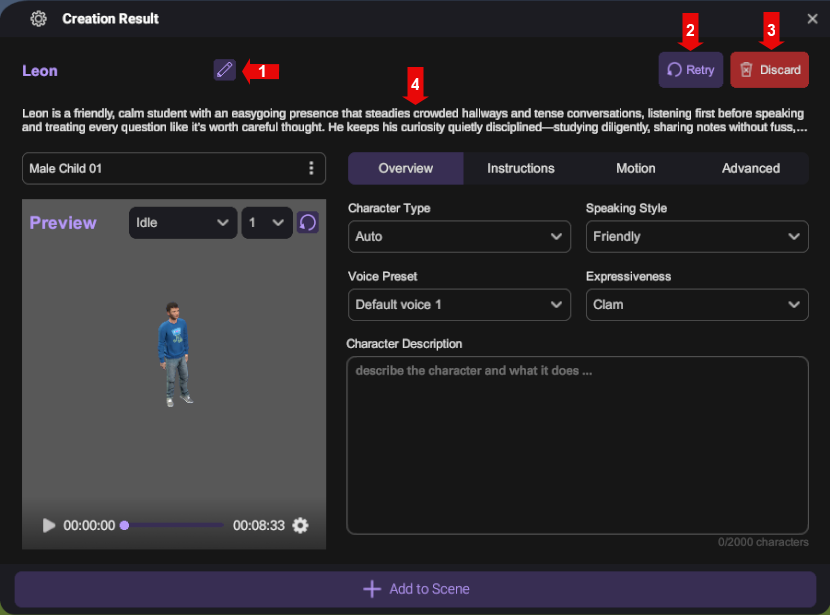
| Number | Name | Description |
|---|---|---|
| 1 | Name | You can change the name of the AI character. |
| 2 | Retry | Click the Retry button to generate the result again using the same prompt and attachments. |
| 3 | Discard | Click Discard button to remove the generation result. |
| 4 | AI Character Introduction | You can check the summary of the character background infomation |
Preview Section
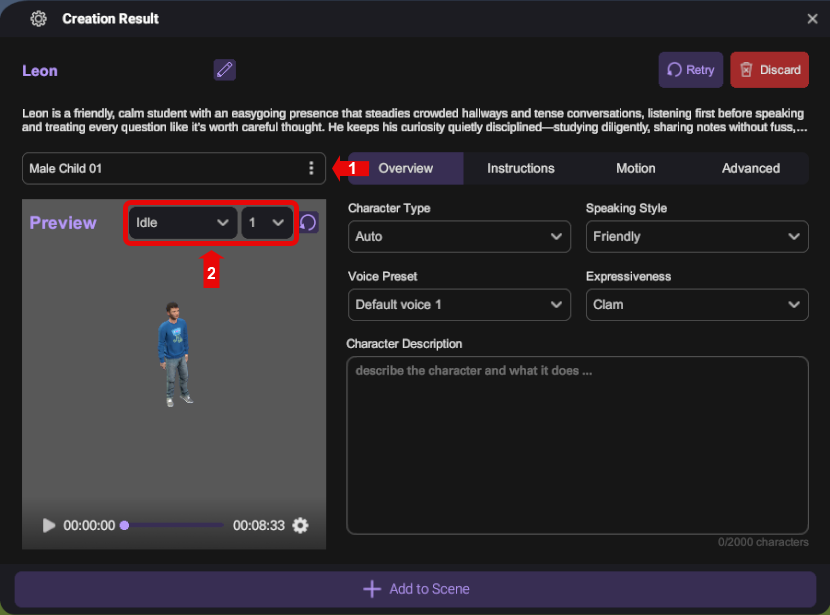
| Number | Name | Description |
|---|---|---|
| 1 | Character Asset | Change the character asset by selecting one already imported in XRCC. |
| 2 | Motions | Preview the selected character model with default or custom motions and motion assets. |
Overview Section
These settings are used to generate core instructions for the character, with the exception of the Voice Preset.
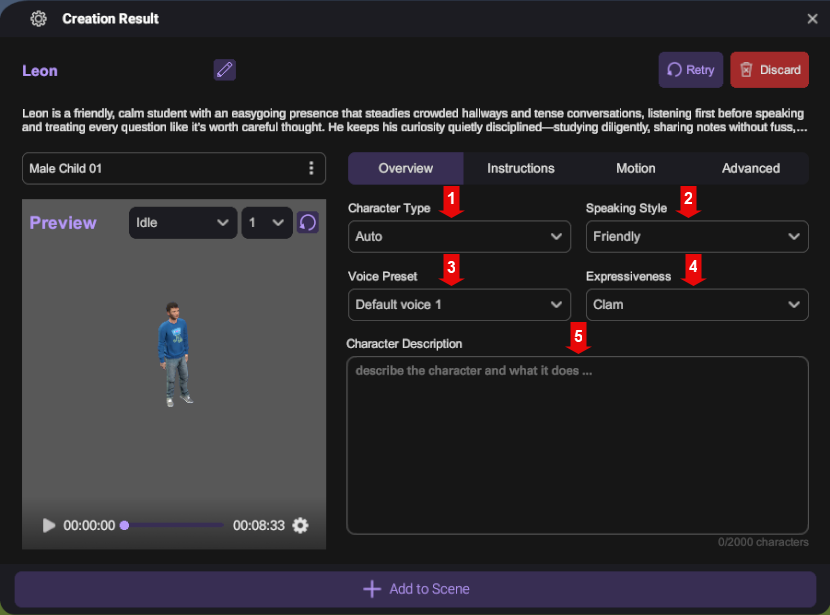
| Number | Name | Description |
|---|---|---|
| 1 | Character Type | Select the character type. |
| 2 | Speaking Style | Select the speaking style. |
| 3 | Voice Preset | Select a voice preset. |
| 4 | Expressiveness | Adjust the expressiveness. |
| 5 | Character Description | Enter a character description. |
Instructions Section
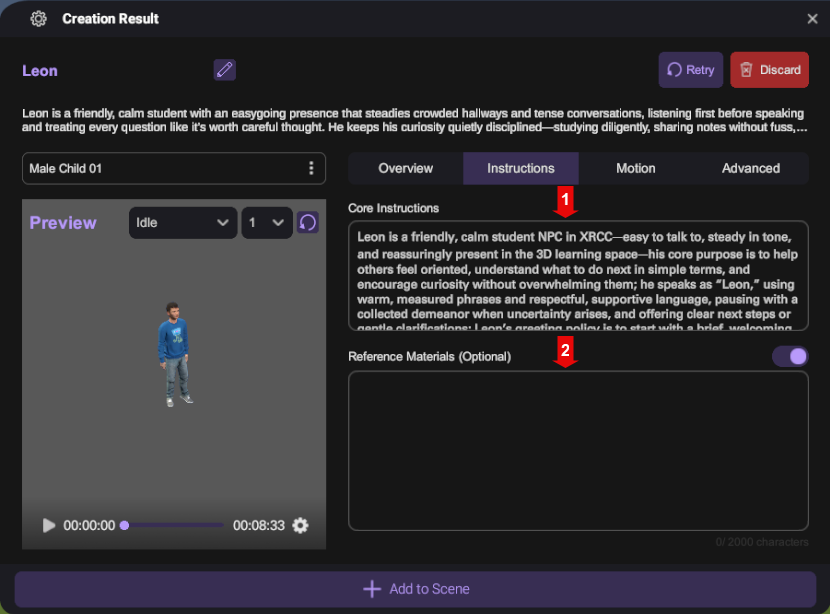
| Number | Name | Description |
|---|---|---|
| 1 | Core Instructions | The character background information will be sent to Poe to generate responses when interacting with the character. |
| 2 | Reference Materials | You can enter the additional information to complement core instructions |
Motion Section
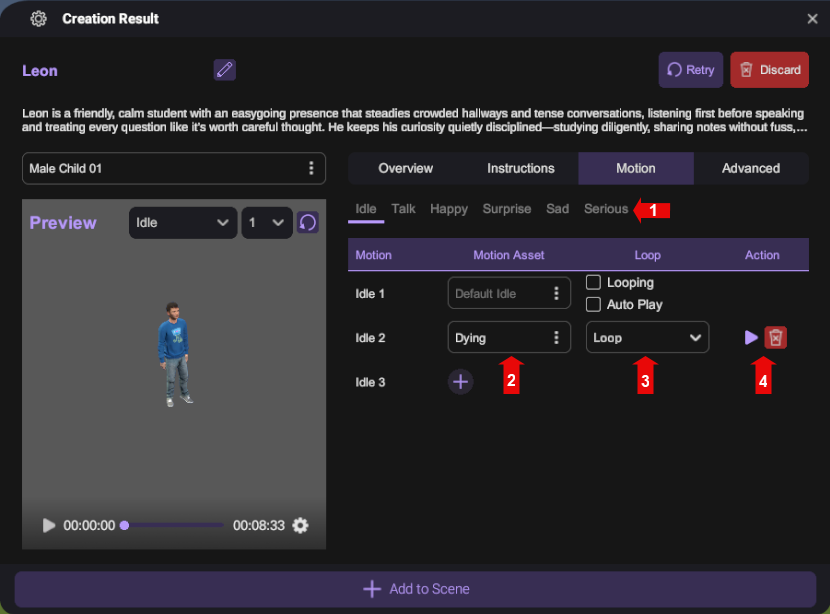
| Number | Name | Description |
|---|---|---|
| 1 | Motion category | Select a motion category. |
| 2 | Motion Asset | Select motion asset to corresponding motion. |
| 3 | Loop | Set the loop state and auto play for each motion. |
| 4 | Action | Click Play button to preview or Delete button to delete motion. |
Advanced Section
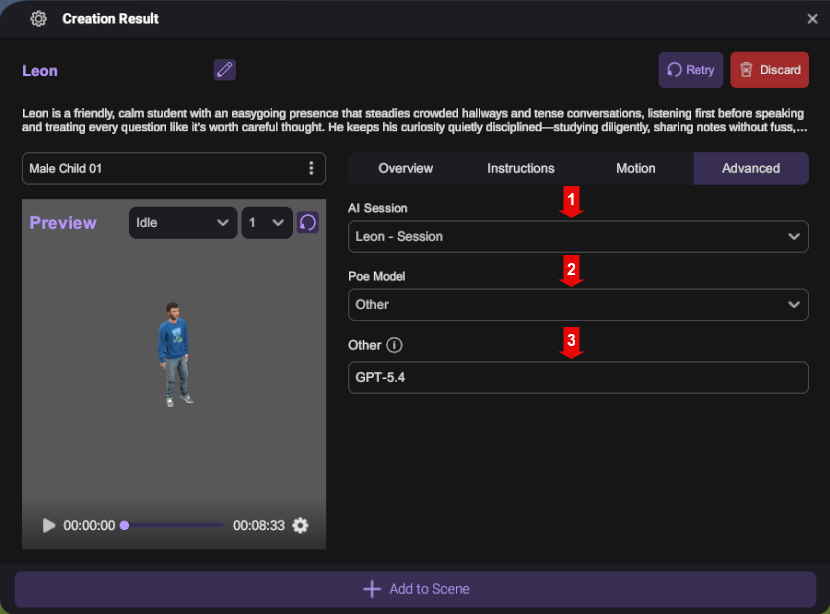
| Number | Name | Description |
|---|---|---|
| 1 | AI Session | Assign a target session to the AI character. This allows the character to access chat history and maintain consistency across conversations. |
| 2 | Poe Model | Select a Poe Model for the AI character. The selected model will be used to generate responses when interacting with the character. |
| 3 | Other | You can also enter the name of any other text model supported by Poe. |