AI Generation Asset
AI Generation Panel
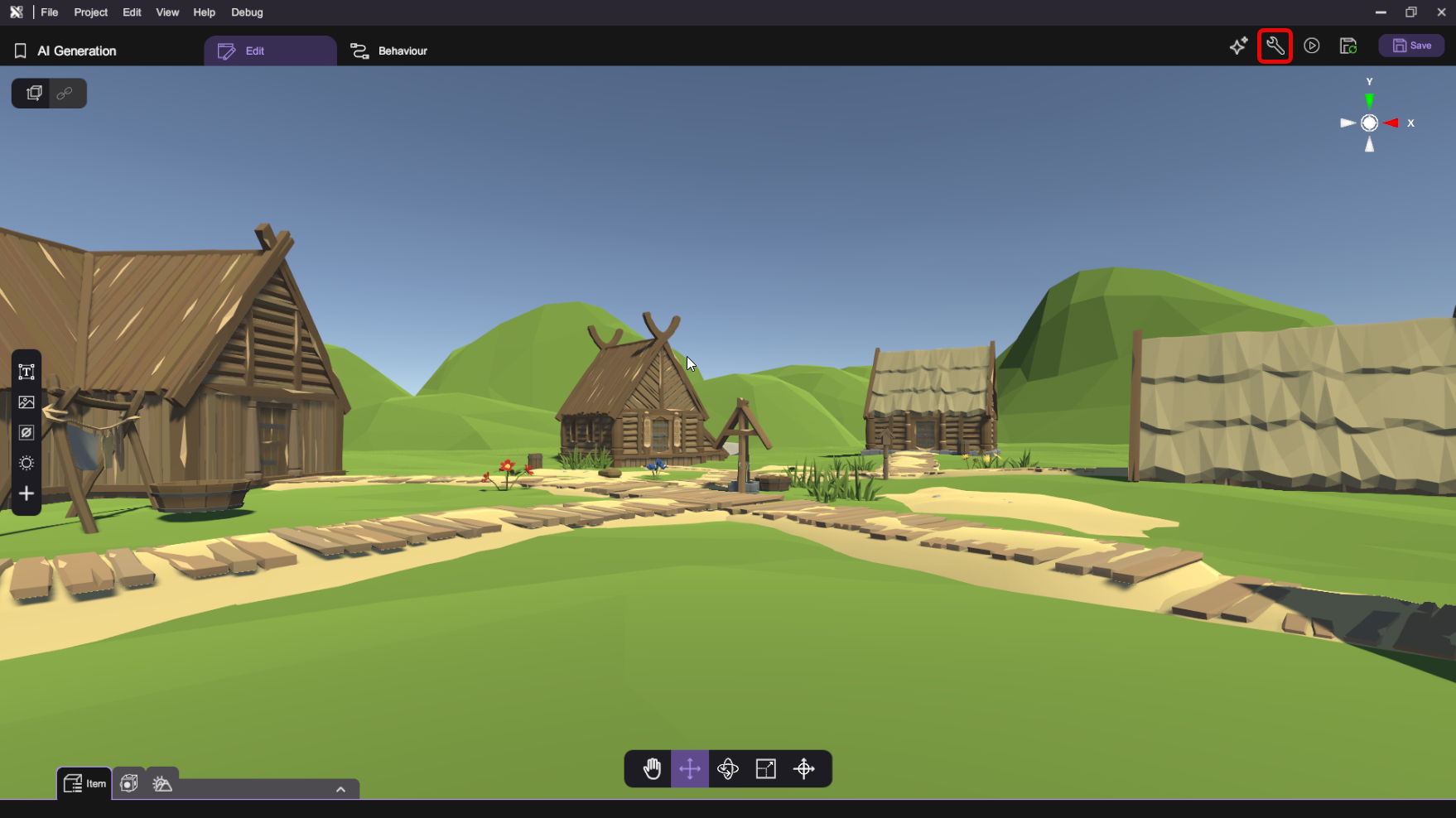 Click the "Create with Poe" button.
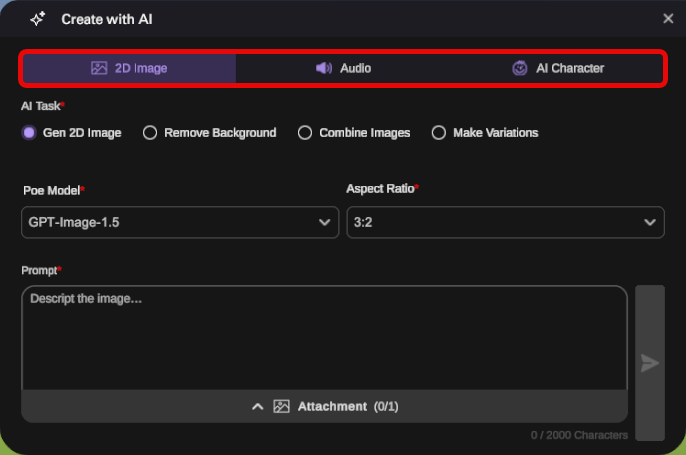
Select the asset type you want to generate using Poe.
1. Image / Audio Section
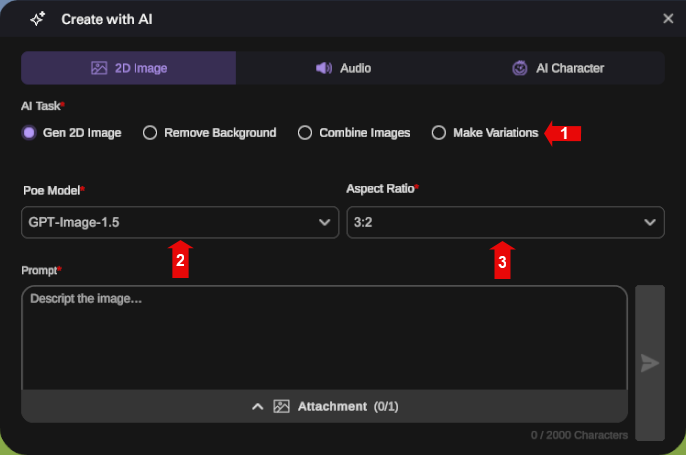
| Number | Name | Description |
|---|---|---|
| 1 | AI Task | Choose the type of task you want Poe to perform. |
| 2 | Poe Model | Select a Poe model that supports the chosen task. |
| 3 | Parameters | Configure the parameters for the selected model. |
2. AI Character Section
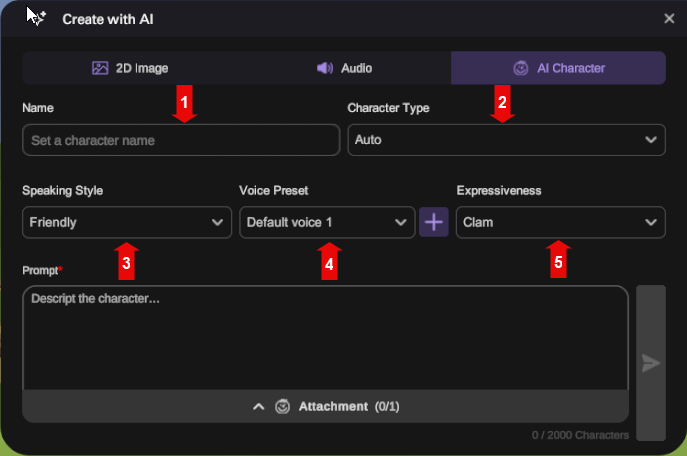
| Number | Name | Description |
|---|---|---|
| 1 | Character Name | Enter the character name. |
| 2 | Character Type | Select the speaking style. |
| 3 | Speaking Style | Select the Speaking Style. |
| 4 | Voice Preset | Select a voice preset. (Click the + button to create a new custom voice preset.) |
| 5 | Expressiveness | Adjust the expressiveness. |
3. Input Section
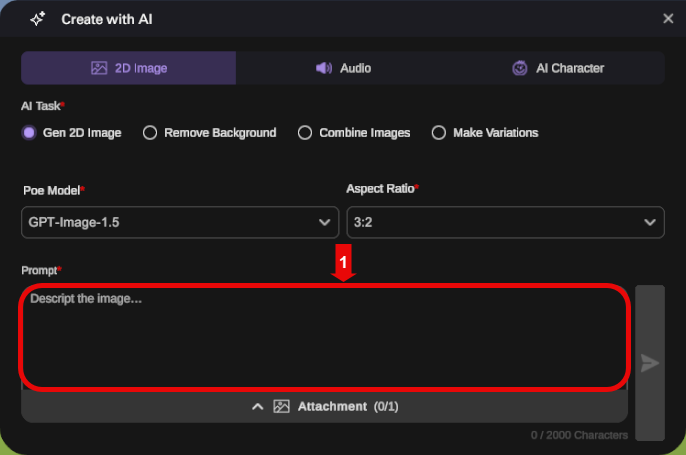
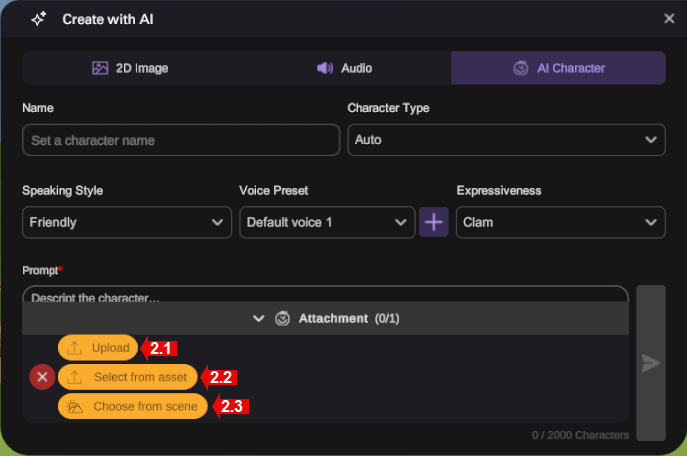
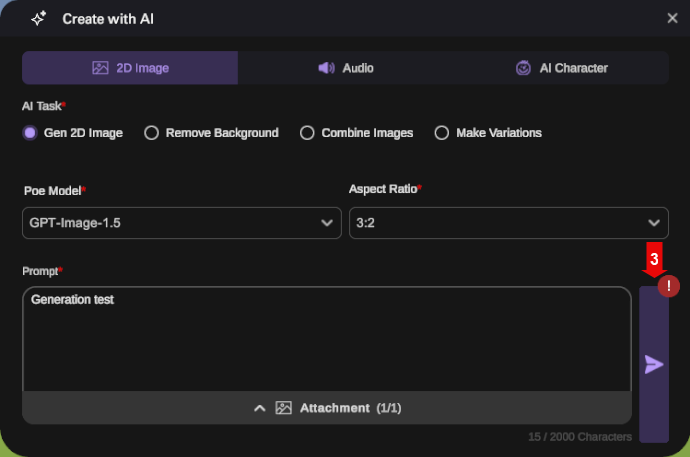
| Number | Name | Description |
|---|---|---|
| 1 | Prompt | Enter your prompt (if required). |
| 2.1 | Upload File | Click Upload button to upload a file from your local PC (if required). |
| 2.2 | Select From Asset | Click Select from asset button to select an existing asset from XRCC (if required). |
| 2.3 | Choose From Scene | Click Choose from scene button to choose an instance from the current scene. (if required) (The asset apply to the target instasnce will be selected) |
| 3 | Submit | Click Submit button to send the request to Poe. (If you haven’t selected a Poe key yet, a warning will appear. Click it to select your Poe key) |
tip
To create an AI Character, you must select a character attachment. Please note that the character file or asset will not be uploaded to Poe. It is used only for previewing the AI Character at AI Character Advanced Setting Panel.
After submitting a request to Poe, the following panel will appear depending on the generated asset type:
- For image or audio assets: The AI Creation Result Panel will be displayed.
- For AI characters: The AI Character Advanced Setting Panel will be displayed.
AI Creation Result Panel
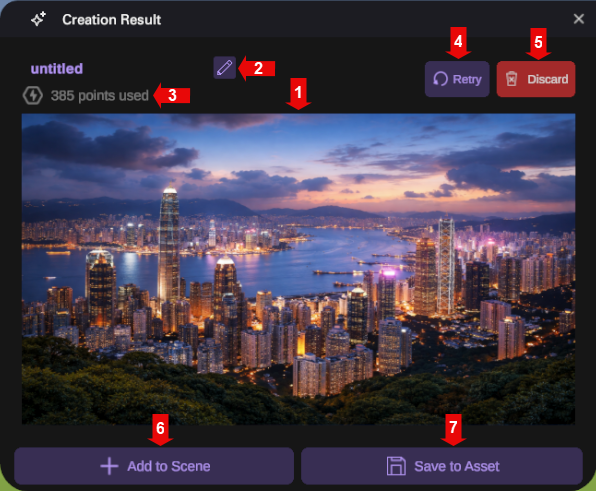
| Number | Name | Description |
|---|---|---|
| 1 | Display Area | The generated image or audio will be displayed. |
| 2 | Name | You can rename the generated asset. |
| 3 | Poe points | The panel will show how many Poe points were consumed for this generation task. |
| 4 | Retry | Click the Retry button to generate the result again using the same prompt and attachments. |
| 5 | Discard | Click Discard button to remove the generation result. |
| 6 | Add to Scene | Click Add to Scene button to import the result as asset and spawn a new instance in the scene. |
| 7 | Save to Asset | Click Save to Asset button to import the result as asset. |