Connections Setup Panel
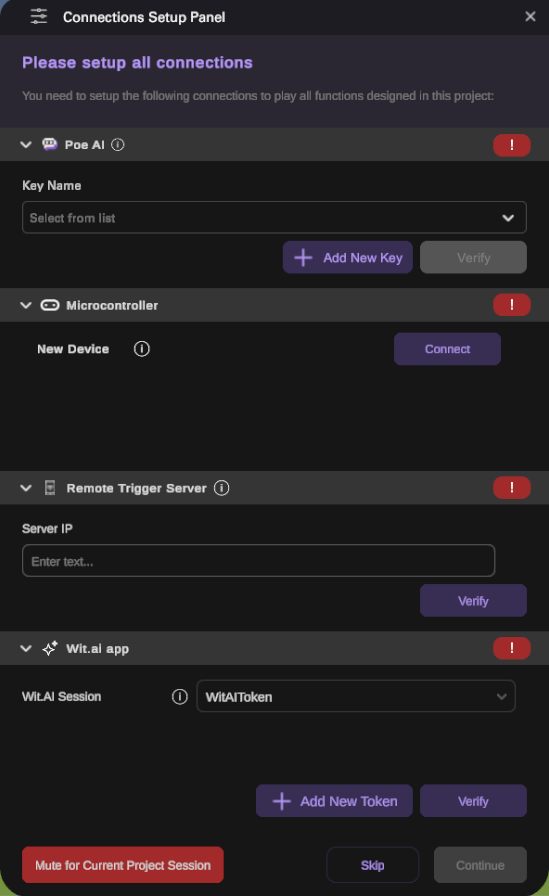
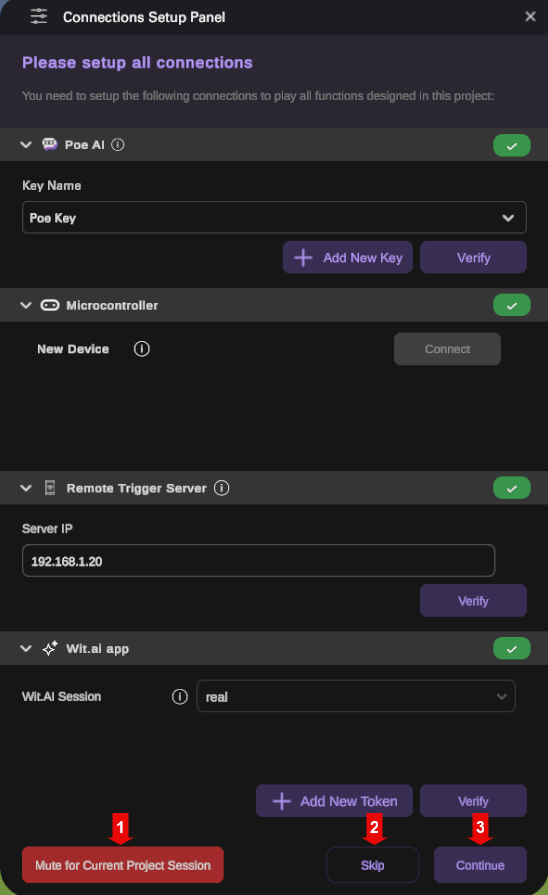
The Connections Setup Panel will appear after a project is loaded. It contains four sections: Poe AI, Microcontroller, Remote Trigger, and Wit.ai. Only the sections corresponding to features that are actively used in the project will be displayed. Users can configure the necessary information in each section to enable the related features.
Poe AI Section
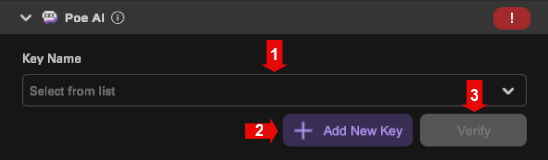
| Number | Name | Description |
|---|---|---|
| 1 | Key | Select a previously registered Poe token on this PC. |
| 2 | Add New Key | Click Add New Key button to register a new Poe key on this PC. |
| 3 | Verify | Click Verify button to verify that a Poe key has been selected. |
Microcontroller Section

| Number | Name | Description |
|---|---|---|
| 1 | Connect | Click Connection button to open Mircocontroller Setup Panel to connect device. |
Remote Trigger Section
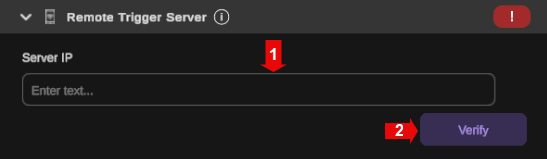
| Number | Name | Description |
|---|---|---|
| 1 | Server IP | Enter the IP address of the remote trigger server. |
| 2 | Verify | Click Verify button to check whether the IP address format is correct. |
Wit.ai Section
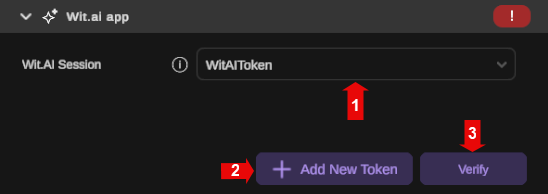
| Number | Name | Description |
|---|---|---|
| 1 | Wit.ai token | Assign a previously registered Wit.ai token on this PC to the selected Wit.ai session. |
| 2 | Add New Token | Click Add New Token button to register a new Wit.ai token on this PC. |
| 3 | Verify | Click Verify button to check whether the selected Wit.ai token is valid. |
Finish Setting
| Number | Name | Description |
|---|---|---|
| 1 | Mute | Click Mute for Current Project Session button to apply the current settings. |
| 3 | Skip | Click Skip button to apply the current settings. You will be notified that only half of the setup is complete. |
| 2 | Continue | Click Continue button to apply all values and complete the setup. (This button is only enabled after all settings have passed verification.) |