Platform Profile
Platform profiles allow you to configure and manage different launch configurations for XRCC. Create custom profiles for different projects, platforms, or development environments.
Profile
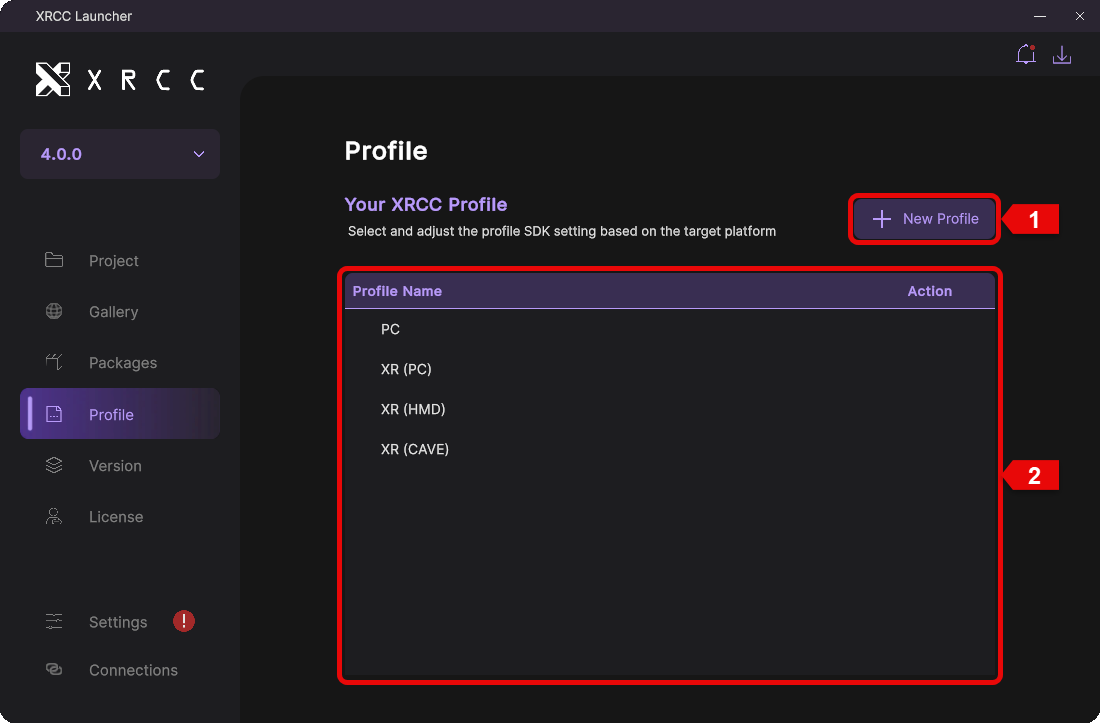
The profile management interface displays all available profiles and allows you to create new ones. Default and custom profiles are shown in a unified list.
| Number | Description |
|---|---|
| 1 | Click the "New Profile" button to open the profile creation panel |
| 2 | Displays all default and custom profiles |
Add New Profile
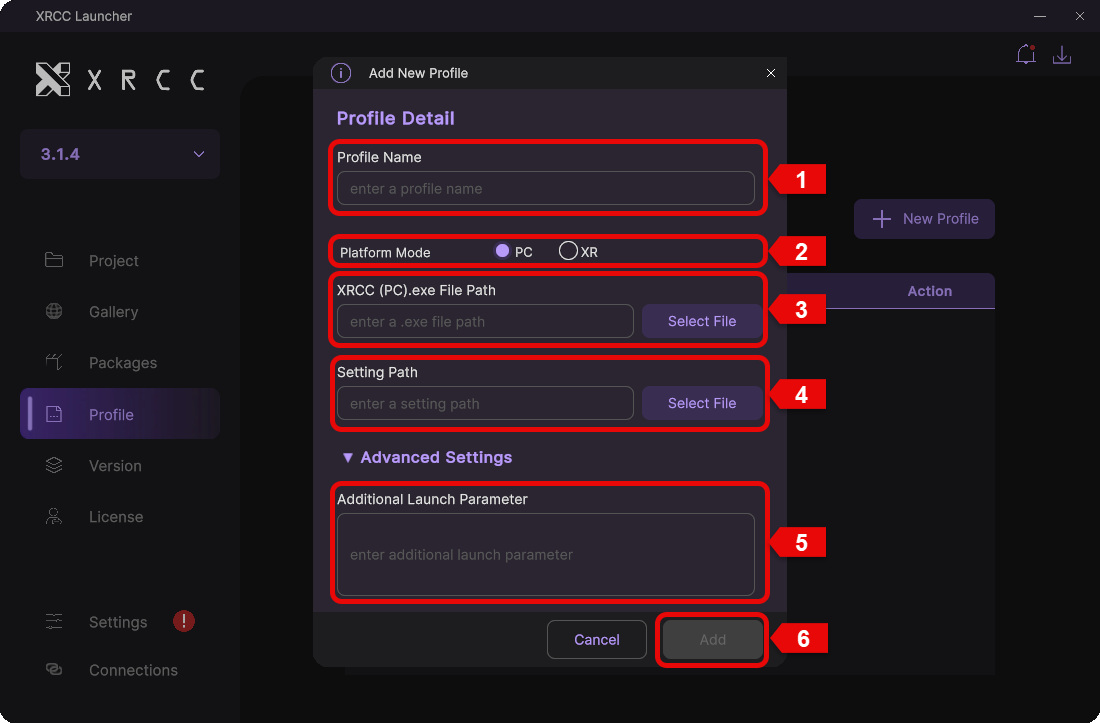
Create a custom profile by specifying the platform mode, XRCC executable path, settings location, and any additional launch parameters.
| Step | Description |
|---|---|
| 1 | Enter a descriptive name for the profile |
| 2 | Select the platform mode (XR or PC) |
| 3 | Select or enter the path to the XRCC executable file |
| 4 | Select or enter the settings directory path |
| 5 | Enter additional launcher parameters |
| 6 | Click the "Add" button to create the new profile |
Profile Management
Manage your existing profiles by editing their configurations or removing profiles you no longer need.
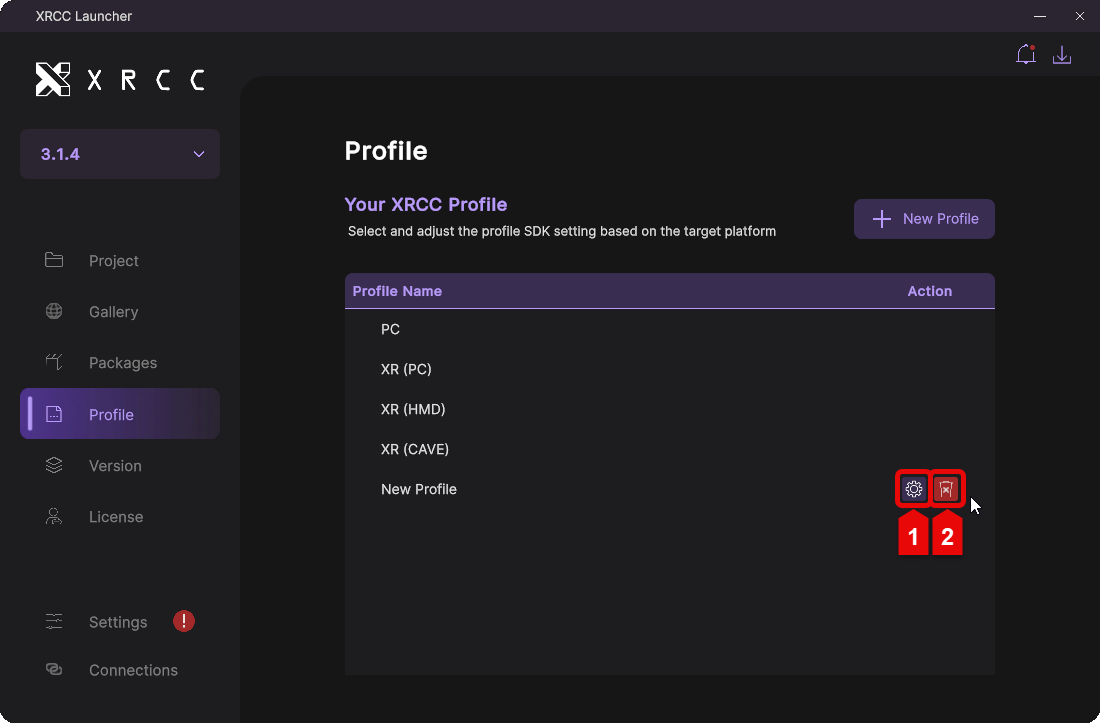
When you hover over a profile in the list, action buttons will appear.
| Number | Description |
|---|---|
| 1 | Click the edit button to modify the profile settings |
| 2 | Click the delete button to remove the profile |
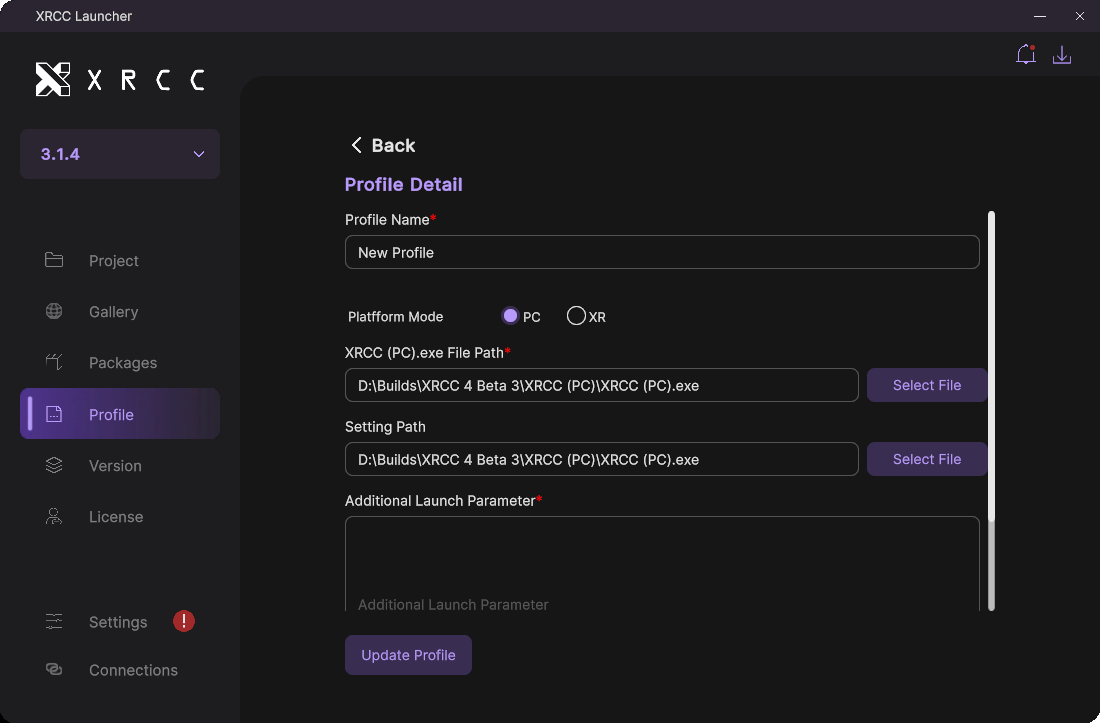
Edit Profile
Modify any aspect of an existing profile, including the platform mode, paths, and launch parameters.
When you click the edit button, you will be navigated to the profile edit page where you can modify all profile details.